
You can upload and share photos and videos in two ways: on the Activity Feed or through the tabs on your Profile.
Uploading Photos and Videos To The Activity Feed
When you post to the Activity Feed, you will see an option to upload media (photos, videos, documents, and gifs).
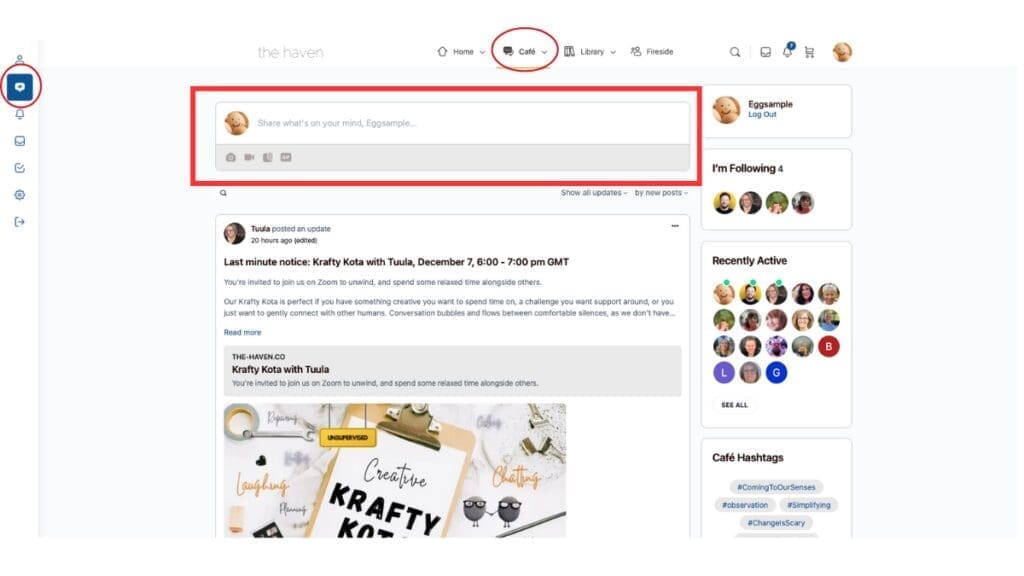
Tap where it says the “Share what’s on your mind…” and it will open a “Create a post” pop-up.
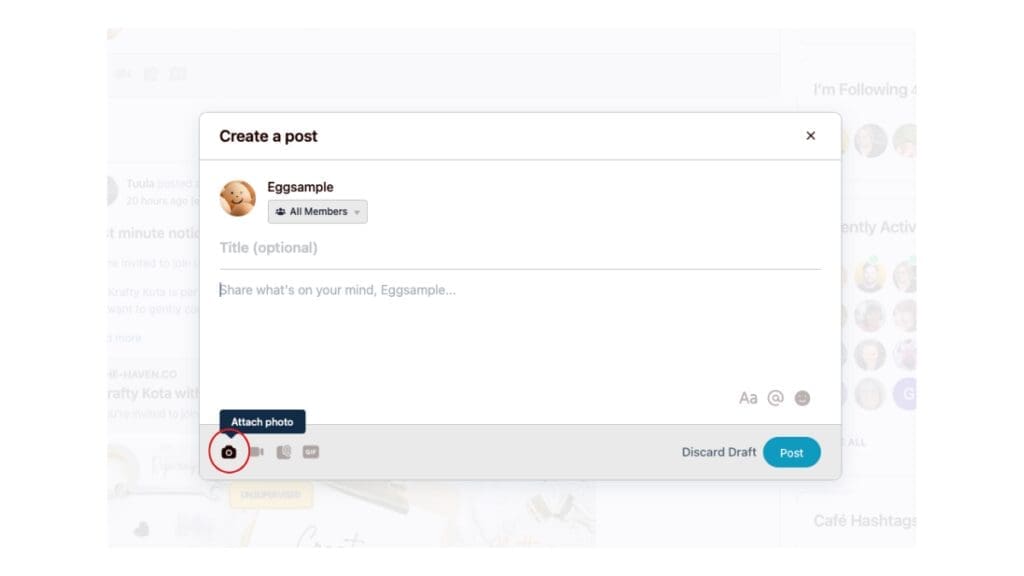
Click “Attach photo” to open the media upload link. It’s the same for both photos and videos. Click the “Add” box to open a hard drive browser you can pick from, or drag and drop them in from your computer.
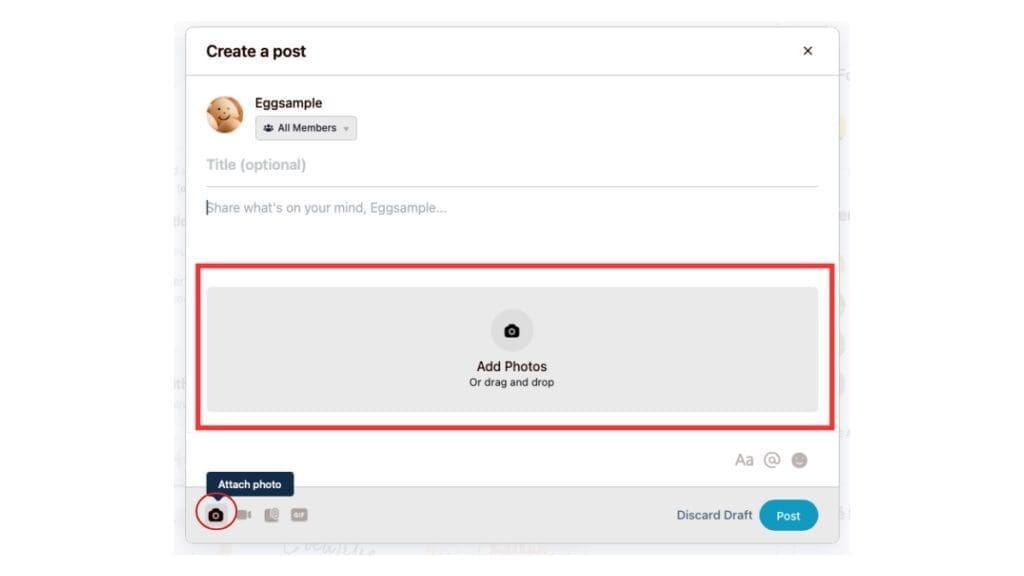
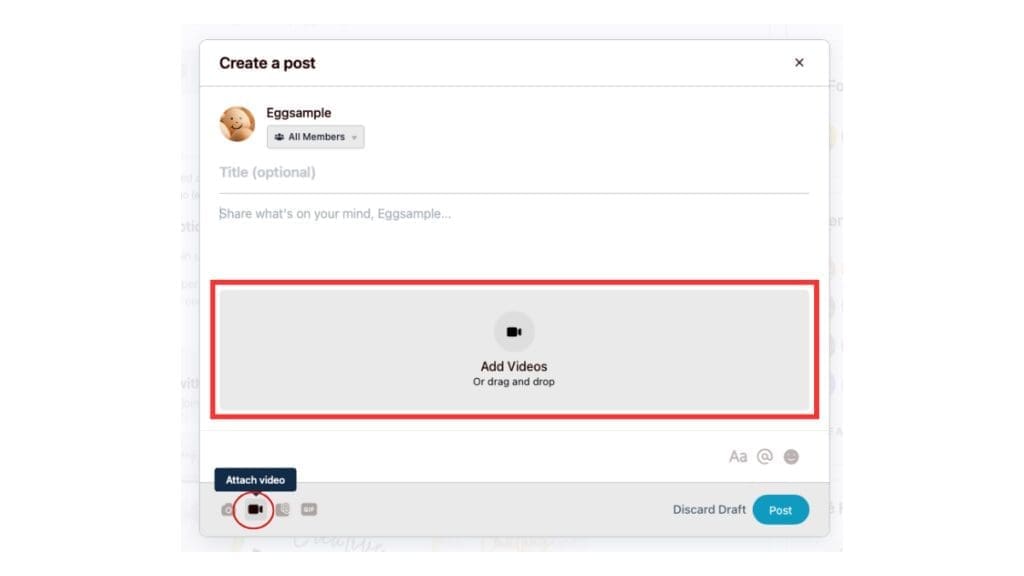
You will see a camera icon with a progress ring while the image is uploading. The “Post” button is pale and unclickable until the upload is complete. When it’s ready, the icon will disappear and the Post button will become functional.
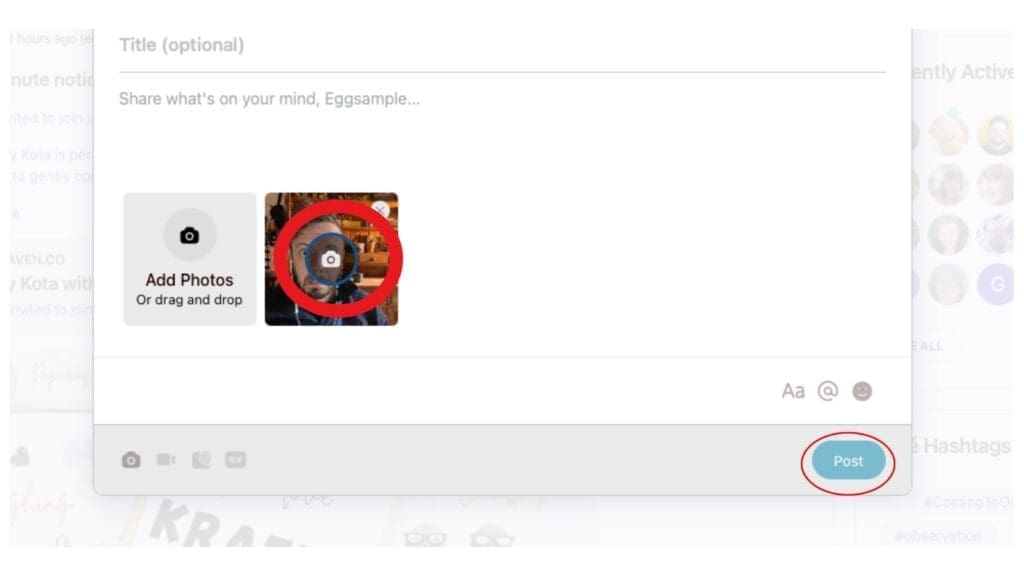
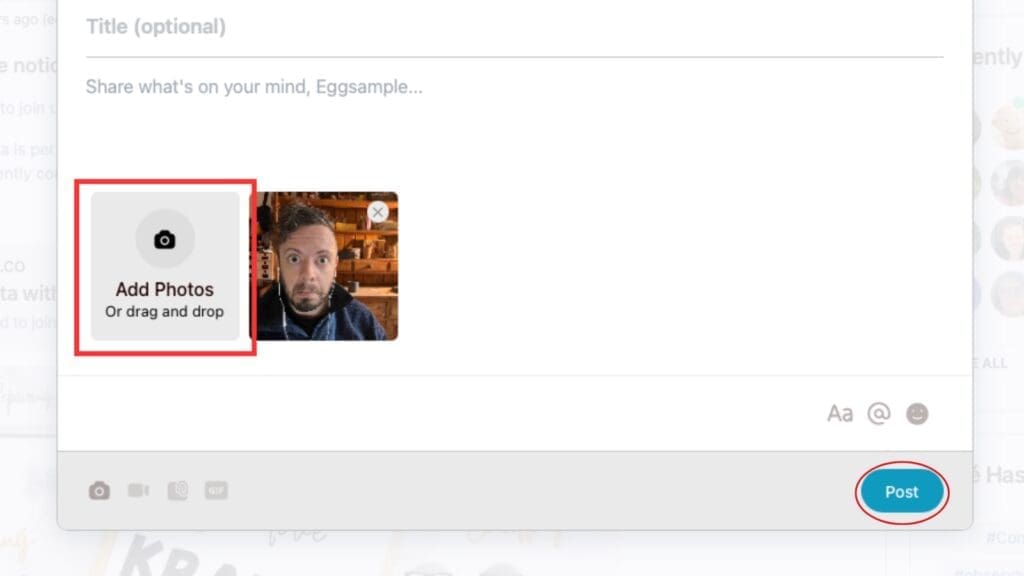
You can add more photos by clicking the grey box next to the uploaded images. This will post to the Activity Feed as one post with a cluster of photos rather than generating separate posts for each upload.
Upload Limits
You can upload up to 10 images in one set (maximum 5mb/image)
You can upload 1 video (maximum 64mb)
Upload Errors
You may see an error message after uploading an image or video. This may be because the file type is incompatible (keep to .jpg, png, .mov, or .m4v where possible) or the file is too large.
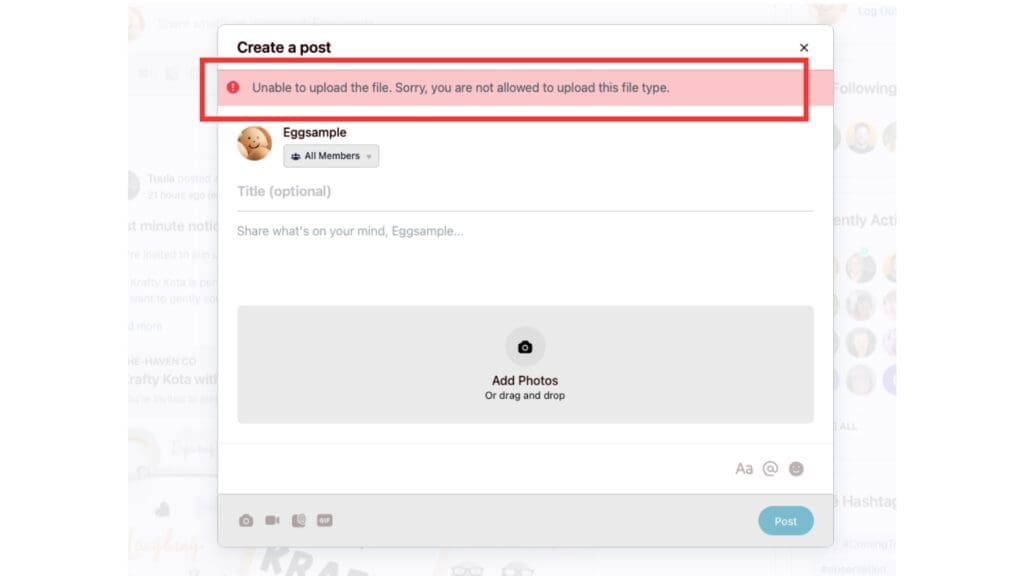
If you have checked and can’t see any reason for the error, it might be an issue somewhere else. In which case, send me a message and share as much detail as you can so I can get it sorted as quickly as possible. Send me a message through the Contact Form.
Uploading To Your Profile
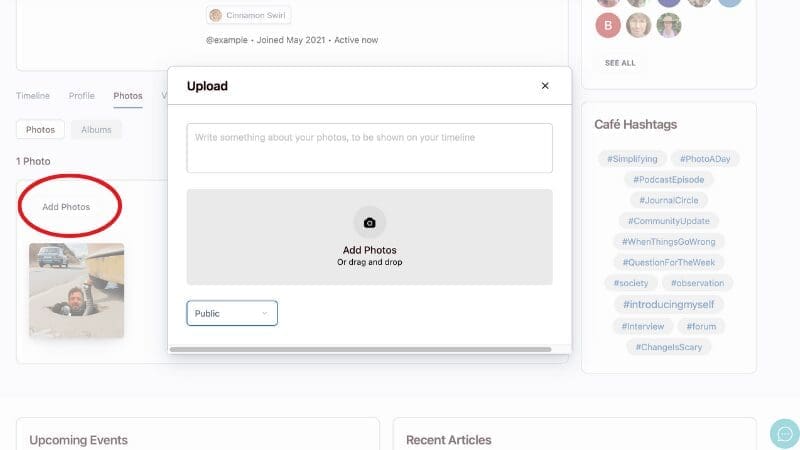
Navigate to your profile page, and find the “Photos” or “Videos” tab.
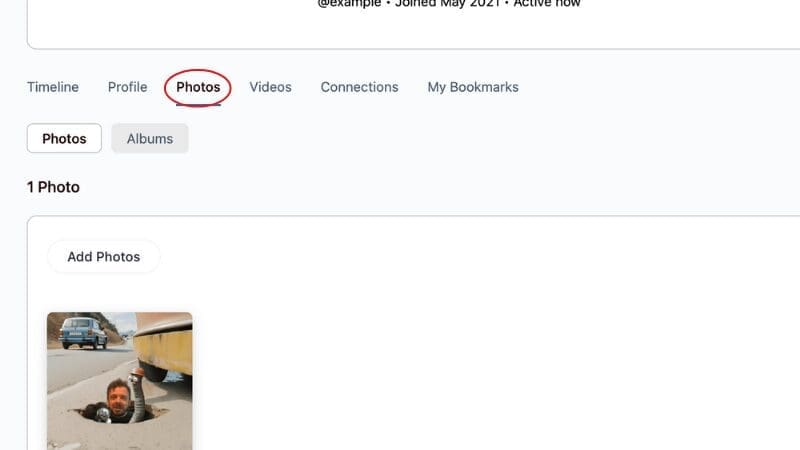
From here, you can “Add Photos” or “Add Videos”. Select your desired Privacy level (you can choose to share with others or keep them private). If you set it as “public”, it means all Haven members will be able to see what you upload. Nothing is visible outside of the membership.
Upload Limits
You can upload up to 10 images in one set (maximum 5mb/image)
You can upload 1 video (maximum 64mb)
Upload Errors
You may see an error message after uploading an image or video. This may be because the file type is incompatible (keep to .jpg, png, .mov, or .m4v where possible) or the file is too large.
If you have checked and can’t see any reason for the error, it might be an issue somewhere else. In which case, send me a message and share as much detail as you can so I can get it sorted as quickly as possible. Send me a message through the Contact Form.
Organising Your Photos In Albums
You can organise your photos into “Albums“. You will find your album collection under the Photos Tab.

You can upload directly to an album, or select previously uploaded photos and move them into your chosen album.

